



Updating the WhatsApp status has become our morning routine. You always look for creative ideas or an important message to have on your WhatsApp status. It often happens that you come across someone’s status that you want to save on WhatsApp.
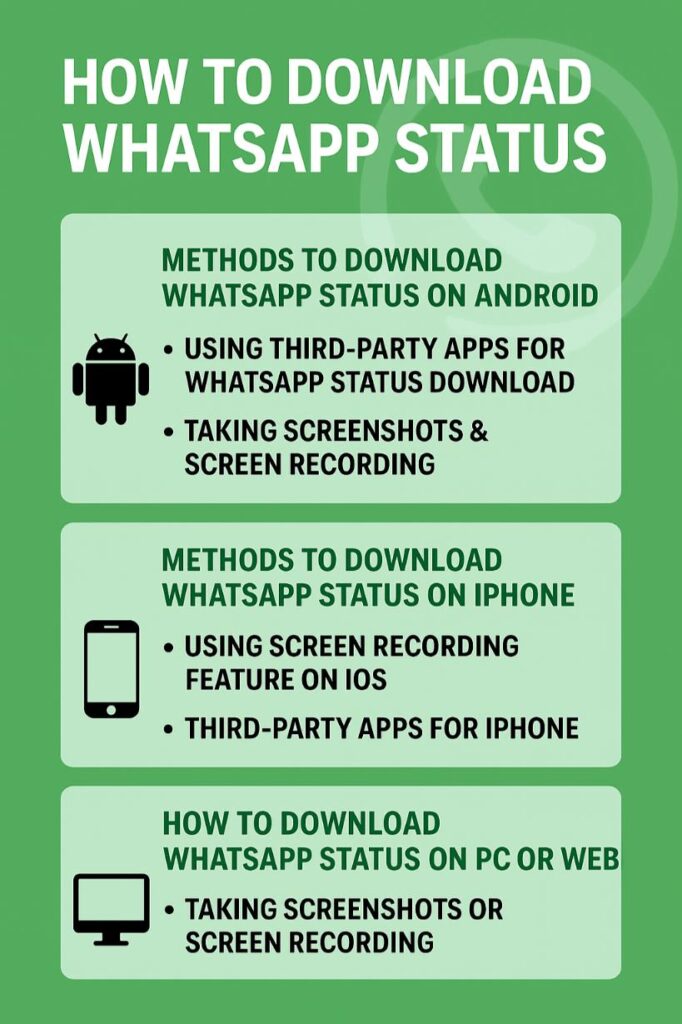
But, still, WhatsApp has no feature to directly download someone’s Status. If you feel the same issue, then do not worry, here in this article, we are sharing the easiest way to download WhatsApp status. Whether you are using WhatsApp on Android, iPhone, or even on PC, we will show you how to download WhatsApp status with a few steps.
What Is WhatsApp Status?
WhatsApp Status is a feature that allows users to share pictures or videos with their connections. More like Instagram and Facebook stories, these statuses stay visible to your connections for the next 24 hours. Most people use it for various purposes. And the most common one is to share daily updates, any announcements, special moments, or motivational life quotes with the contacts.
Methods to Download WhatsApp Status on Android
If you are an Android user, you have two easy ways to download and save WhatsApp status. Both methods have their pro and cons, but you need to go for the one that feels easy, safe, and perfect for your needs. Here are two ways you can download WhatsApp status on your Android smartphone.

Method 1: Using Third-Party Apps for WhatsApp Status Download
If you are going for this option, you need to install another application that gives you options to download status on WhatsApp.
- Install a trusted ‘Status Saver’ app from the Google Play Store. (You can also use the ‘Status Saver’ app).
- Open the app. The app detects and shows updates from your contacts.
- Pick the status you want to download or save.
- Tap ‘Save’.
- Then, the status will be downloaded to your gallery.
Method 2: Taking Screenshots & Screen Recording
If you don’t want to download any application, then this is your best choice. You can just use your phone’s built-in status to save and record statuses you like. Here are the easy steps for that:
- For photos: If you want to save someone’s status, use the screenshot feature to keep it as a photo in your phone.
- For videos: When someone’s status is in video form or you want to record their entire stats, use screen recording while checking their status.
- The saved files on your phone, you can edit or trip, as per your need.
You also want to check out this guide on how to delete a WhatsApp group.
Methods to Download WhatsApp Status on iPhone
If you are using an iPhone, then the process to download WhatsApp status is quite different. You still have two methods of using the third-party app and screen recording feature, but the process is slightly changed here. Let’s see how you can do it:

Method 1: Using the Screen Recording Feature on iOS
This is the handy and simplest way to save status on WhatsApp. Also, this method works for saving both image and video status.
- Open Control Center and go to the ‘Screen Recording ‘feature.
- Tap the ‘Record’ button.
- Go to the status that you like to save or download.
- Now, stop recording.
- The status will be saved to your Photos app.
Method 2: Third-Party Apps for iPhone
If you are looking for a clearer and quality way to download WhatsApp status, you need to use a third-party app. Just be sure to download the file from a valid platform, like the App Store, and check the review before using it. Here are further steps:
- Go to iPhone ‘App Store’
- Search for ‘Status Saver’ or ‘Status Downloader for WhatsApp’.
- Give the required permission before using the app.
- Open the app. Check the status that you want to save.
- Now save the statuses that you want.
We have just shared the top emojis with their meanings to know which one to use and when.
How to Download WhatsApp Status on PC or Web?
You can also download statuses on WhatsApp on your computer or through WhatsApp web. Here you can also use a screen recorder or another software to save WhatsApp statuses. But you need to be sure that the tools or software that you use are safe. Here are two ways to download WhatsApp status on PC or web:

Method 1: Take a Screenshot on PC.
- If you are using WhatsApp web on Windows, then press ‘Print Screen’ to capture the status.
- For Mac users, ‘Command + Shift + 4’ is the key to press.
- Now, save the screenshot to your desired location.
Method 2: Use Screen Recording Software
- For this purpose, you need to install a free screen recorder (like OBS or Loom).
- Open WhatsApp status and start recording it, and then ‘Save’.
- Next, you can save the recording to your preferred location on your PC.
If you face any challenges in saying the right word at the right time, try our comment generator tool for free.
Conclusion
WhatsApp status allows you to share daily updates with your connections. But often you want to save such a WhatsApp status for memory. So far, WhatsApp has no ‘download’ option for that, but we have shared these easy methods to do so.
It’s up to you to follow the easiest way, like taking a screenshot or recording, or even using a third-party app for that. Just be sure to keep others’ privacy in mind while saving statuses on WhatsApp.
Can I download WhatsApp status without an app?
Yes, you can simply take screenshots of status, and also use screen recording to save and download status without the app.
What’s the best app to download WhatsApp status on Android?
If you want to download WhatsApp status, you need to use apps like ‘Status Saver’ or ‘Status Downloader’ from the Google Play Store.
Can iPhone users download WhatsApp status easily?
iPhone users can use the built-in screen recording features to keep WhatsApp status on their mobiles.
Does WhatsApp notify someone if I download their status?
No, so far, this feature isn’t available on WhatsApp.
How do I save WhatsApp status directly to the gallery?
Mostly, WhatsApp status is saved to download options, but with phone settings, you can manage to save them directly to your gallery.