


Finding active Pokémon GO nests is easier when you know where to look. A Pokémon GO nest map can help you discover potential nest locations, identify areas where specific Pokémon may spawn, and plan your exploration more efficiently. However, nest information can become outdated as Pokémon GO periodically updates its spawn patterns and nest rotations. A location that previously hosted a particular Pokémon may no longer be an active nest, so it’s important to check recent community reports and verify the Pokémon currently appearing in that area before making a trip.
Once you’ve found a promising nest location, you may also want a convenient way to explore nearby Pokémon resources and load specific coordinates. This is where Fonelora Location Changer can be useful. It provides virtual location controls that help you manage location-based exploration and work with saved coordinates, making it easier to organize your Pokémon GO location research in one workflow.
In this guide, we’ll explain how to find and verify active Pokémon GO nests, where to look for updated nest information, and how Fonelora can support your location-based exploration.
Why I Recommend Fonelora Location Changer for Exploring Pokémon GO Nest Locations
Traditional Pokémon GO nest hunting often involves several separate steps:
- Finding a recently updated Pokémon GO Nest Map or community report with potential nest locations.
- Checking recent reports to see whether the Pokémon and spawn information are still relevant.
- Searching for nearby Pokémon resources and manually copying coordinates into a location-changing tool.
Switching between websites, community posts, and different tools can make the process unnecessarily complicated.
This is where Fonelora Location Changer can make Pokémon GO location exploration more convenient. While a Pokémon GO Nest Map helps you discover reported nest areas, Fonelora’s built-in PoGo Search and PoGo Radar features provide another way to explore available Pokémon resources. Once you find a resource you want to check out, you can select it and use the Go action to load its coordinates directly into Teleport Mode.
Here are the features that make the workflow particularly useful:
- Integrated Pokémon Search: Search for specific Pokémon by name or Pokédex number, making it easier to explore available Pokémon resources without constantly switching between external websites.
- Built-in PoGo Radar: Browse available Pokémon resources through the built-in map and identify locations worth exploring.
- One-click Coordinate Loading: Select a Pokémon resource and click Go to load its coordinates directly into Teleport Mode, reducing manual coordinate copying.
- Cooldown Management: Use the built-in cooldown timer to keep track of travel intervals when changing virtual locations.
- Auto-Catch (launching November 26): After setting up a suitable roaming route, Auto-Catch can automatically throw regular Poké Balls at eligible wild Pokémon within interaction range, reducing repeated manual catching.
- Auto-Spin: When passing nearby PokéStops or eligible friendly Gyms, Auto-Spin can automatically spin their discs and collect available rewards, helping you replenish supplies during exploration.
- Background Operation: Supported Auto-Catch and Auto-Spin workflows can continue running with the screen locked, reducing the need to keep watching your phone throughout the process.
What I find most appealing is how these features work together. Instead of simply finding a potential Pokémon location, you can move through a more convenient workflow:
Find a potential nest → Search for Pokémon resources → Load coordinates → Plan a roaming route → Automate catching and spinning.
This doesn’t mean Fonelora replaces a dedicated Nest Map or verifies whether a reported nest is currently active. Rather, it complements nest research by making the subsequent location-based exploration process more convenient.
How to Use Fonelora After Finding a Pokémon GO Nest Map Location
If you’ve already found a potential Pokémon GO nest through a recently updated Nest Map or community report, Fonelora Location Changer can help you explore available Pokémon resources and prepare your virtual location. If you’re new to the tool, the process is relatively straightforward.
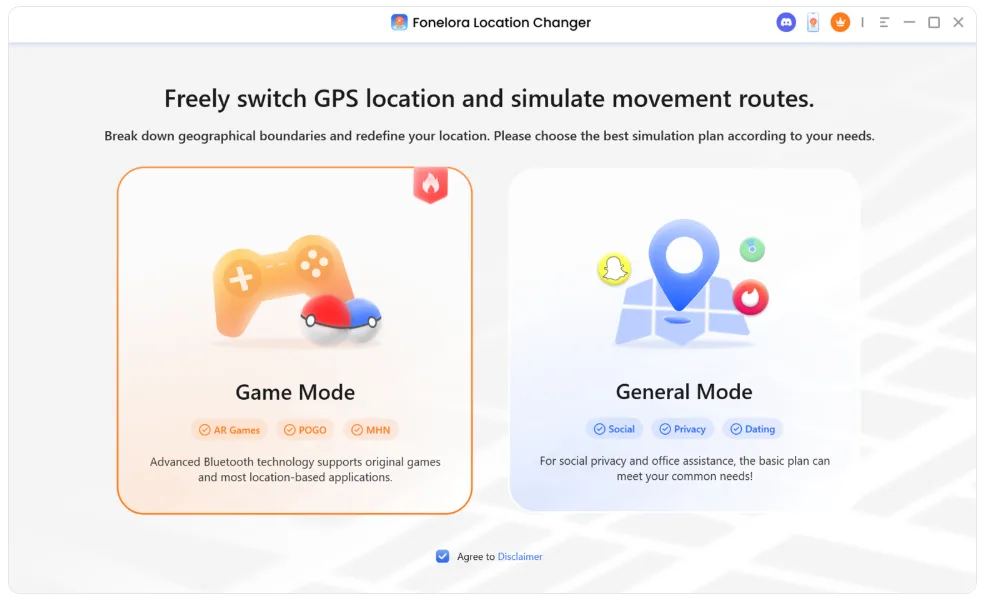
Step 1: Open Fonelora Location Changer
Launch Fonelora Location Changer and open its main map. Find the PoGo Search or PoGo Radar feature to start exploring available Pokémon resources.
Step 2: Search for Your Target Pokémon
Use the search filters to enter a Pokémon’s name or Pokédex number. This makes it easier to narrow down the available resources instead of browsing random coordinates.
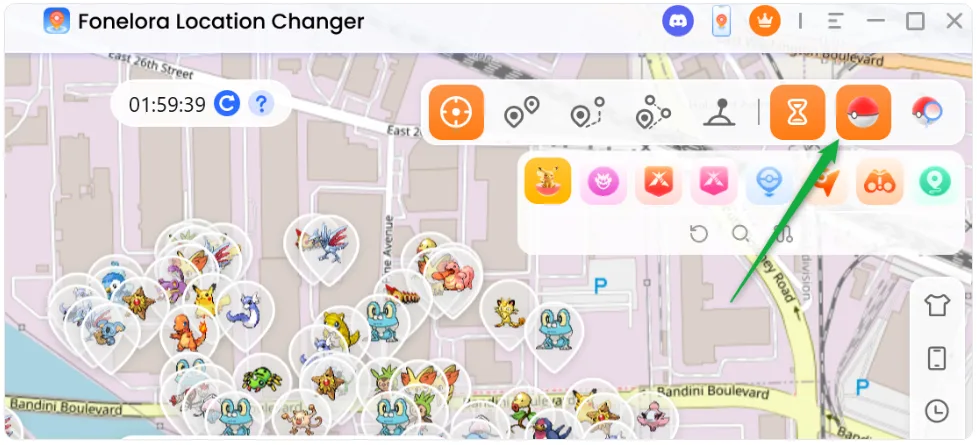
Step 3: Check Available Resources
Review the resource cards displayed by the search. Look for geographical clusters of your target Pokémon, which may help you identify potential farming locations.
Keep in mind that a cluster of available Pokémon resources does not automatically confirm an active nest. Use a dedicated Nest Map and recent community reports to verify nest information.
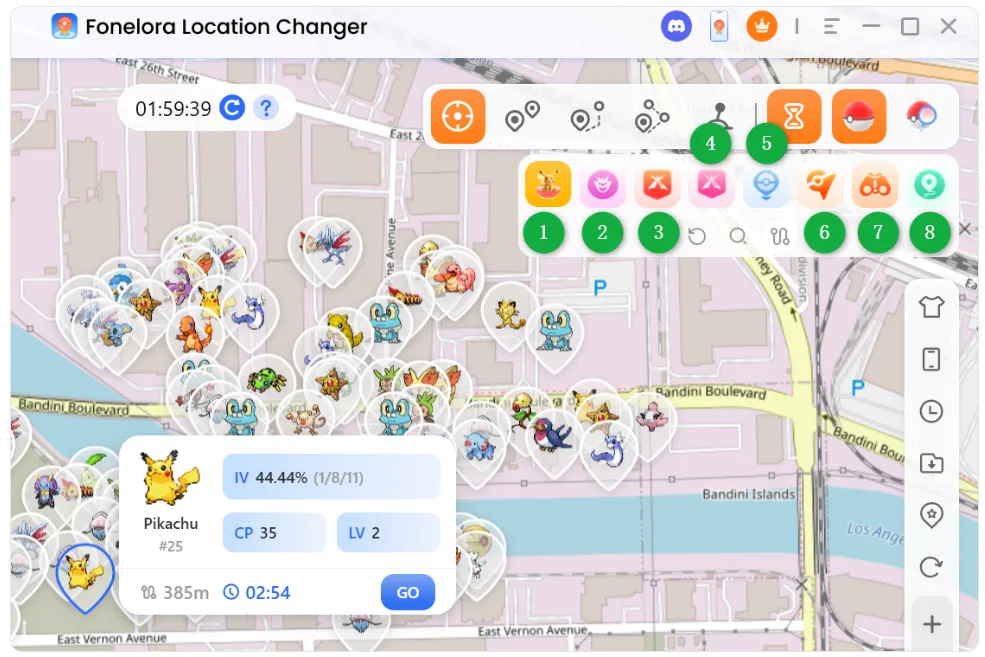
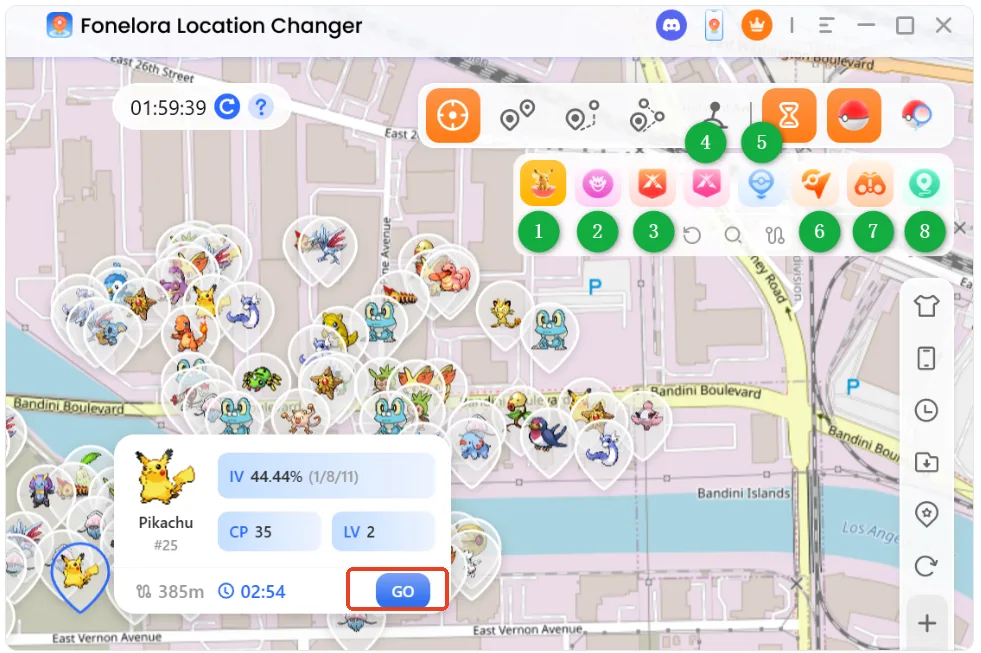
Step 4: Load the Coordinates
Once you’ve selected a suitable resource, click the Go action on its resource card. Fonelora automatically loads the selected coordinates into Teleport Mode.
This is one of the most convenient parts of the workflow because it removes the repetitive copy-and-paste process.
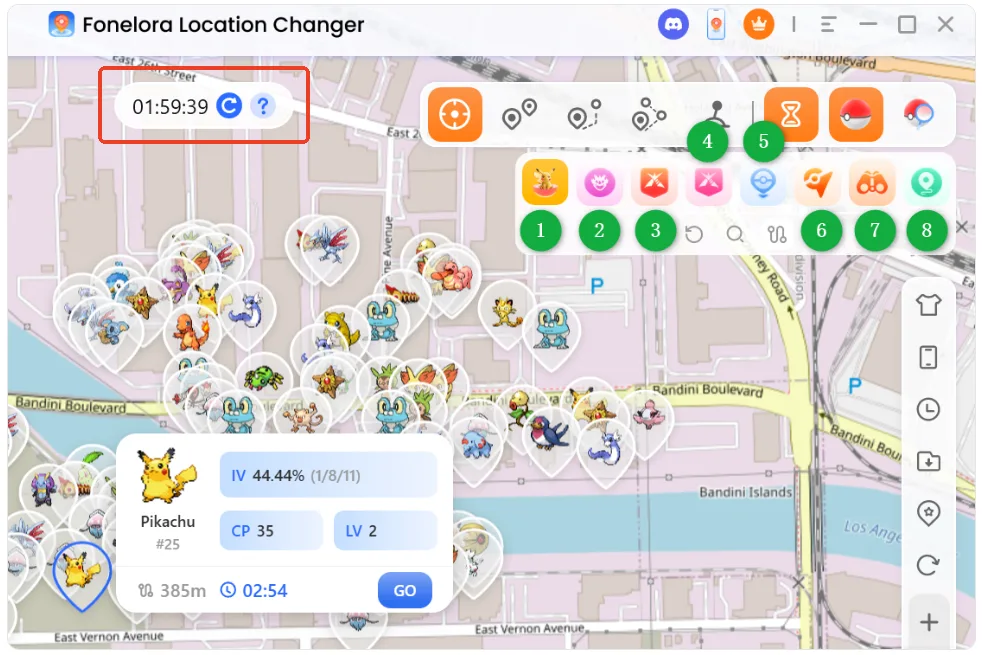
Step 5: Check the Cooldown Timer
Before changing your virtual location, consult the built-in cooldown timer and the Pokémon GO cooldown chart.
Remember that cooldown guidance is informational and does not guarantee protection against account restrictions or enforcement.
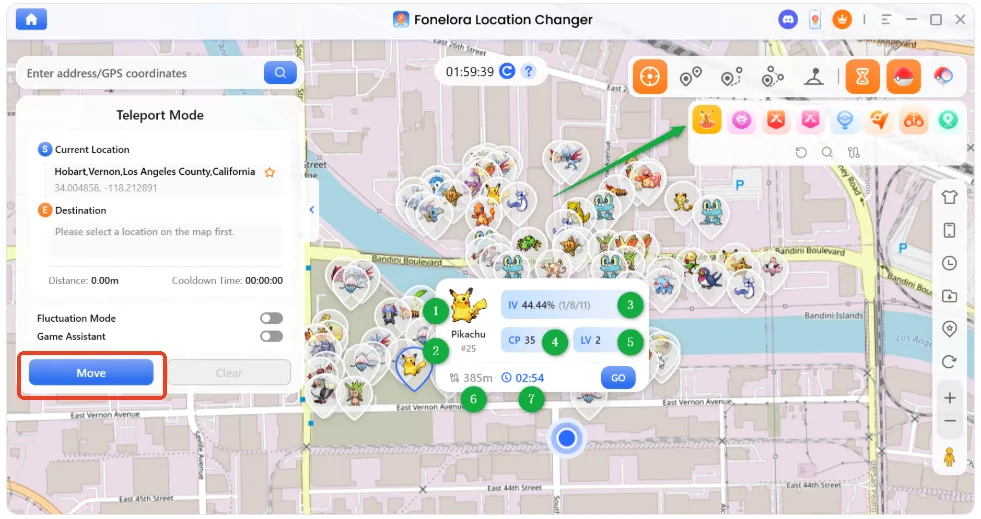
Step 6: Start Your Virtual Movement
Choose the appropriate movement option and use Start Moving to change your device’s virtual location. You can then open Pokémon GO and check the available local spawns.
If you want to spend more time exploring without repeatedly performing manual actions, Fonelora also offers Auto-Catch and Auto-Spin features, which we’ll cover below.
Catch Pokémon Automatically While Exploring
Finding a promising Pokémon location is only part of the experience. Fonelora will officially launch Auto-Catch and Auto-Spin on November 26, adding automation options for users who want to reduce repeated manual actions while exploring.
After configuring the supported virtual peripheral and pairing it with your phone through Bluetooth, you can set a roaming route on the Fonelora desktop map and enable the supported automation features.
Here’s what each feature does:
- Auto-Catch: Automatically attempts to catch eligible wild Pokémon encountered within interaction range using regular Poké Balls.
- Auto-Spin: Automatically spins eligible nearby PokéStops and friendly Gyms to collect available item rewards.
Together, these features create a more convenient exploration workflow. As your virtual character follows the configured route, Auto-Catch can attempt to catch nearby wild Pokémon, while Auto-Spin helps collect supplies from eligible locations.
Another useful convenience is supported background operation. Once the peripheral is successfully paired and the automation is running, you can lock your phone screen while the desktop interface continues to display information such as catch counts and item or bag status through its floating card.
There are a few important things to understand before getting started:
1. Auto-Catch uses regular Poké Balls
Auto-Catch uses regular red Poké Balls by default. If they run out, automatic catching pauses until your supply is replenished.
2. External peripheral connections have a time limit
The external peripheral connection is automatically disconnected after 60 minutes according to the game’s accessory mechanism. Reconnect the peripheral before continuing.
3. Auto-Spin has specific functionality
Auto-Spin collects spin rewards from eligible PokéStops and friendly Gyms; it does not claim gifts, Research Breakthrough, Special Research, battle, or Raid rewards.
4. Check device compatibility before purchasing
Auto-Catch currently works through the Fonelora desktop client on Windows and Mac and requires Bluetooth hardware with BLE support, with Bluetooth enabled on the phone.
Check the official compatibility requirements before purchasing or enabling the feature.
5. Auto-Catch requires a separate purchase
Auto-Catch is a separately paid add-on. Pro is required to purchase it, so Basic users must upgrade to Pro first.
If you prefer managing your Pokémon GO location workflow on a phone, you can also explore Fonelora Go, the mobile experience. Check its available features and plan requirements before choosing the version that best suits your needs.
Note: Mobile PoGo Search and PoGo Radar features are included in the Pro plan. Auto-Catch is a separate purchase and requires an existing Pro plan.
Using Pokémon GO Nest Maps Alongside Fonelora PoGo Radar
Pokémon GO Nest Maps and Fonelora PoGo Radar serve different purposes, so there’s no need to choose one over the other.
A dedicated Pokémon GO Nest Map helps players discover community-reported nest locations and follow reported nest changes. It is particularly useful when you’re looking for areas that may host recurring spawns of certain Pokémon.
Fonelora PoGo Radar, on the other hand, helps users explore Pokémon resources currently available through the product’s built-in map. You can search for specific Pokémon, review available resource cards, and load selected coordinates into Teleport Mode.
Here’s how the two tools complement each other:
Feature | Pokémon GO Nest Map | Fonelora PoGo Radar |
|---|---|---|
Main purpose | Discover reported Pokémon nest locations | Explore available Pokémon resources |
Location information | Community-reported nest areas | Resources displayed in the built-in map |
Nest migration information | May include community-reported updates | Not designed to verify nest migrations |
Pokémon search | Depends on the map or community database | Search by Pokémon name or Pokédex number |
Coordinate workflow | Depends on the external map | Load selected resource coordinates into Teleport Mode |
For a more organized approach, you can start by checking a recently updated Nest Map to identify promising areas. Then, open Fonelora PoGo Search or PoGo Radar to explore available Pokémon resources and load coordinates for further exploration.
The advantage is the combination of two different workflows: Nest Maps help you discover potential nest locations, while Fonelora helps you search Pokémon resources and manage your virtual location afterward.
Neither tool should be treated as a guarantee that a particular nest is currently active or that a specific Pokémon will appear. Always check recent information before planning your exploration.
How to Use a Pokémon GO Nest Map
If your goal is to find an active Pokémon GO nest, knowing how to read and verify Nest Map information is just as important as finding the map itself.
A Pokémon GO Nest Map typically helps players discover community-reported locations where certain Pokémon regularly spawn. However, these reports are not always updated in real time. A location marked as a nest may have changed following a Pokémon GO nest migration.
Here are four practical steps to help you use a Nest Map more effectively.
- Check Recently Updated Nest Maps and Community Reports
Start by looking for a Pokémon GO Nest Map or community database that provides location information and recent player reports.
You can also check Pokémon GO communities on Reddit and local player groups for recent sightings. Pay attention to the publication date rather than relying on an old coordinate list that may have been shared several weeks or months ago.
The more recent the report, the more useful it may be when deciding which location to investigate.
- Check the Pokémon, Location, and Update Date
Once you find a potential nest, examine the information provided by the map or community report.
Focus on three details:
- Pokémon species: Check which Pokémon is reportedly spawning at the location.
- Geographical location: Make sure the reported area is specific enough to identify and visit.
- Last updated date: Look for recent confirmations instead of assuming that an old report is still accurate.
Some maps may display user-submitted information without confirming whether the nest is currently active. Treat these listings as potential locations rather than guaranteed spawn sources.
- Consider Pokémon GO Nest Migration
Pokémon GO nests can change during periodic nest migrations. When a migration occurs, the Pokémon species associated with a particular nest may change.
This is why a coordinate that was useful during a previous migration may no longer be suitable for finding the same Pokémon.
Before planning your exploration, compare the reported nest information with the latest available migration updates and community confirmations.
Avoid assuming that every old nest coordinate remains valid indefinitely.
- Verify Pokémon Resources After Reaching the Area
Even after finding a recently reported nest, it’s worth checking the Pokémon currently appearing in the area.
Look for recent sightings and available spawn information to determine whether the location is still worth exploring.
You can also use Fonelora Location Changer’s PoGo Search and PoGo Radar features to explore available Pokémon resources separately. If you find a resource you want to check out, select its resource card and use Go to load the coordinates into Teleport Mode.
Remember that this process helps you explore available Pokémon resources; it does not independently verify whether a location is an officially active nest.
The most practical approach is to combine recent Nest Map reports, community updates, and available Pokémon resource information rather than relying on a single outdated coordinate list.
What You Should Know About Pokémon GO Nest Migrations
Even with a convenient Pokémon GO Nest Map, understanding nest mechanics is important. Knowing how nest migrations work can help you determine whether a previously reported location is still worth exploring.
Pokémon GO nests are specific geographical areas, commonly parks and recreational spaces, where certain Pokémon appear more frequently than usual. These locations can be useful when you’re looking for particular nesting species.
Here are a few important things to remember:
- Nest Migrations: Nesting species generally change during periodic migration cycles, historically occurring approximately every two weeks. Alternating Thursdays have commonly been associated with these changes, although the schedule can vary.
- Not Every Pokémon Nests: Many rare Pokémon, egg-exclusive species, and fully evolved Pokémon do not have regular nesting behavior. Don’t assume that every Pokémon can be found through a Nest Map.
- Regional Coverage: Community maps and Pokémon resource tools may provide more information in some cities and regions than others. Coverage depends on available data and community participation.
- Temporary Spawns: Special events, seasonal changes, and other time-limited game content can affect which Pokémon appear in a particular location.
If you’re looking for additional location references, check recently updated Pokémon GO Nest Maps, local player communities, and recent coordinate reports. Always compare the information with the latest available sightings rather than relying entirely on old listings.
Frequently Asked Questions
How often do Pokémon GO nests change?
Pokémon GO nest species have historically changed approximately every two weeks, with alternating Thursdays commonly associated with migration cycles. However, migration timing can vary, so check recent community reports instead of relying entirely on a fixed schedule.
Where can I find active Pokémon GO nests?
You can look for potential active nests through community-maintained Pokémon GO Nest Maps, local Discord communities, Reddit discussions, and recently shared coordinate lists.
When checking a potential nest, pay attention to the Pokémon species, geographical location, and last updated date. Compare multiple recent reports whenever possible, since an old listing may no longer reflect current spawn information.
After identifying a promising area, you can also use Fonelora Location Changer’s PoGo Search and PoGo Radar to explore currently available Pokémon resources. These features complement Nest Maps but do not independently verify nest activity.
Can I search for a specific Pokémon nest?
You can use community Nest Maps and local player reports to look for locations associated with specific nesting Pokémon.
Fonelora Location Changer also provides Pokémon search filters that let users search by Pokémon name or Pokédex number, depending on available regional data. However, this searches available Pokémon resources rather than confirming that a location is an active nest.
Does Fonelora Location Changer support mobile users?
Yes. Fonelora Go provides a mobile option for users who prefer managing their Pokémon GO location workflow on a phone.
Mobile PoGo Search and PoGo Radar features are included in the Pro plan. Check the current plan details to confirm which features are available before purchasing.
Can cooldown timers guarantee account safety?
No. Cooldown timers are useful for tracking location-change intervals, but they cannot guarantee protection against detection, account restrictions, or bans.
Third-party location tools may carry risks under Pokémon GO’s rules. Users should understand these risks before using virtual location features.
What is a Pokémon GO Nest Map?
A Pokémon GO Nest Map is a map or community resource that helps players discover reported nest locations, identify the Pokémon species associated with those areas, and find geographical references or coordinates.
Most community Nest Maps rely on player-submitted information, so their accuracy depends on how frequently reports are updated. Nest migrations, special events, and changes to Pokémon spawn patterns can make previously listed information outdated.
For better results, check the latest community reports and migration information before visiting a potential nest.
Once you’ve identified a promising location, Fonelora Location Changer’s PoGo Search and PoGo Radar can help you explore available Pokémon resources and load selected coordinates into Teleport Mode.
My Final Recommendation
If you only occasionally search for Pokémon GO nests, free community maps, Reddit discussions, and shared coordinates are still useful resources.
However, if you regularly look for specific Pokémon, compare different locations, and want a more convenient way to manage your virtual location, I’d recommend taking a closer look at Fonelora Location Changer.
Its built-in PoGo Search, PoGo Radar, direct coordinate loading, and cooldown timer help streamline the process of exploring available Pokémon resources without constantly switching between websites and applications.
For Pokémon GO nest hunters, the two tools serve different but complementary purposes:
- Pokémon GO Nest Maps: Discover community-reported nest locations and check recent migration information.
- Fonelora PoGo Search and PoGo Radar: Explore currently available Pokémon resources and find locations worth checking out.
- Teleport Mode: Load selected coordinates directly and prepare your virtual location.
My preferred approach is to start with a recently updated Pokémon GO Nest Map, identify a promising area, and then use Fonelora to explore available Pokémon resources and manage the next steps.
If you want to make your next Pokémon location search more convenient, explore Fonelora Location Changer and try its PoGo Search and PoGo Radar features.