

Forgot your Samsung phone’s PIN, password, or pattern? You may even find that your phone asks for a password before allowing you to turn it off.
Fortunately, you can factory reset a Samsung phone when locked using Recovery Mode, without entering the screen password. However, this process erases local data and may trigger Google account verification afterward.
In this guide, we’ll show you how to reset a locked Samsung phone using hardware buttons, as well as how Fonelora Android Unlocker offers an easier alternative for removing screen locks without immediately wiping your device.
Method 1: Factory Reset a Locked Samsung Phone Using Hardware Buttons
The most direct way to factory reset a locked Samsung phone is through Android Recovery Mode. You don’t need to unlock the screen or access Settings.
Before starting: A factory reset permanently deletes local data, including photos, apps, and settings. Make sure you know the Google account previously associated with the device, as you may need it after resetting.
Step 1: Connect Your Samsung Phone to a Computer
For many newer Samsung Galaxy models, connect your phone to a Windows PC or Mac using a USB data cable. Some older devices may not require a computer connection.
Step 2: Force Restart Your Locked Samsung Phone
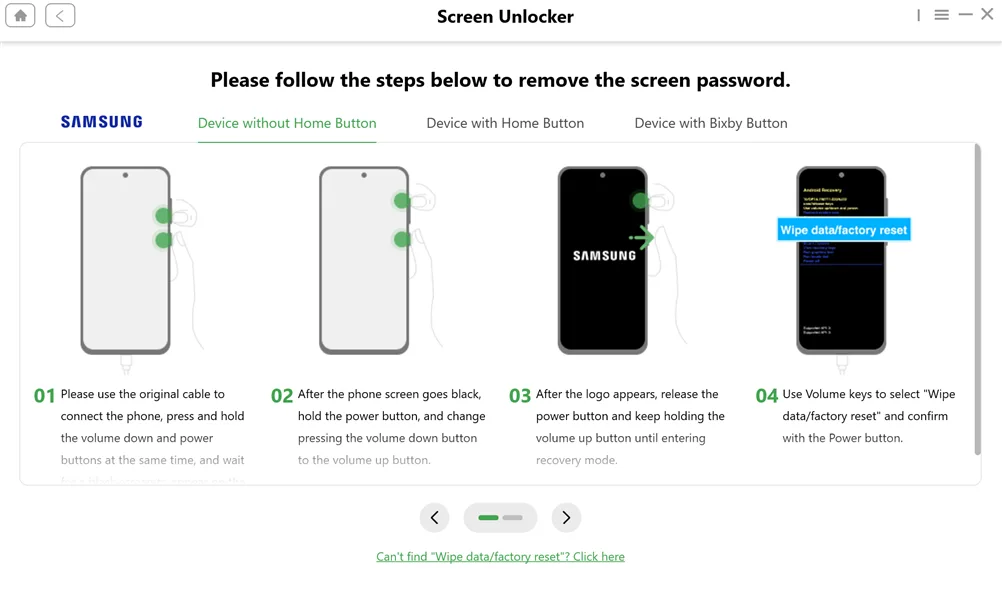
Press and hold Volume Down + Power/Side key simultaneously for approximately 7–10 seconds. Keep holding the buttons until the screen turns black.
Step 3: Enter Recovery Mode
As soon as the screen turns black:
- Release Volume Down.
- Immediately press and hold Volume Up, while keeping the Power/Side key pressed.
- Wait for the Samsung logo or Recovery Mode screen.
- Release the buttons according to your model’s startup sequence.
Note: The exact button combination varies by model. Older Samsung phones with physical Home or Bixby buttons may require different combinations.
Step 4: Factory Reset Your Samsung Phone
Once the Android Recovery menu appears:
- Use the Volume buttons to highlight Wipe data/factory reset.
- Press the Power button to confirm.
- Select Factory data reset.
- Wait for the process to complete.
- Choose Reboot system now.
Your Samsung phone will restart with its factory settings restored.
The previous screen lock will be removed, but you may still need to verify your Google account during setup.
Method 2: Try Fonelora Android Unlocker — An Easier Alternative to Factory Reset
Although Recovery Mode can reset a locked Samsung phone, it isn’t always the best choice. The process requires precise hardware-button timing, which can be frustrating if your phone keeps restarting instead of entering Recovery Mode.
More importantly, a manual factory reset permanently erases your phone’s local data. If you have important photos, contacts, or files that haven’t been backed up, this can be a significant drawback.
If your primary goal is to regain access to your Samsung phone rather than erase everything, Fonelora Android Unlocker offers a more convenient alternative.
This desktop unlocking tool helps users remove forgotten Android screen locks through a guided process, without requiring advanced technical skills or rooting the device.
Why Choose Fonelora Android Unlocker?
1. Remove Different Types of Samsung Screen Locks
Fonelora Android Unlocker supports PINs, passwords, patterns, and fingerprint or face recognition locks. Its Screen Unlocker module helps remove these locks on compatible Samsung devices.
2. Simple, Guided Unlocking Process
Unlike manual Recovery Mode, Fonelora Android Unlocker provides clear, step-by-step instructions without requiring rooting or complicated flashing procedures. Simply connect your device and follow the prompts. Some models may still require hardware-button operations.
3. Unlock Select Samsung Phones Without Losing Data
A manual factory reset always erases local data. Fonelora Android Unlocker, however, offers a no-data-loss unlocking option for select supported Samsung models.
For eligible devices, you may be able to remove the screen lock while keeping important files, including photos, contacts, and messages.
How to Unlock a Samsung Phone with Fonelora Android Unlocker
The process involves three main steps.
Step 1: Download and Launch Fonelora Android Unlocker
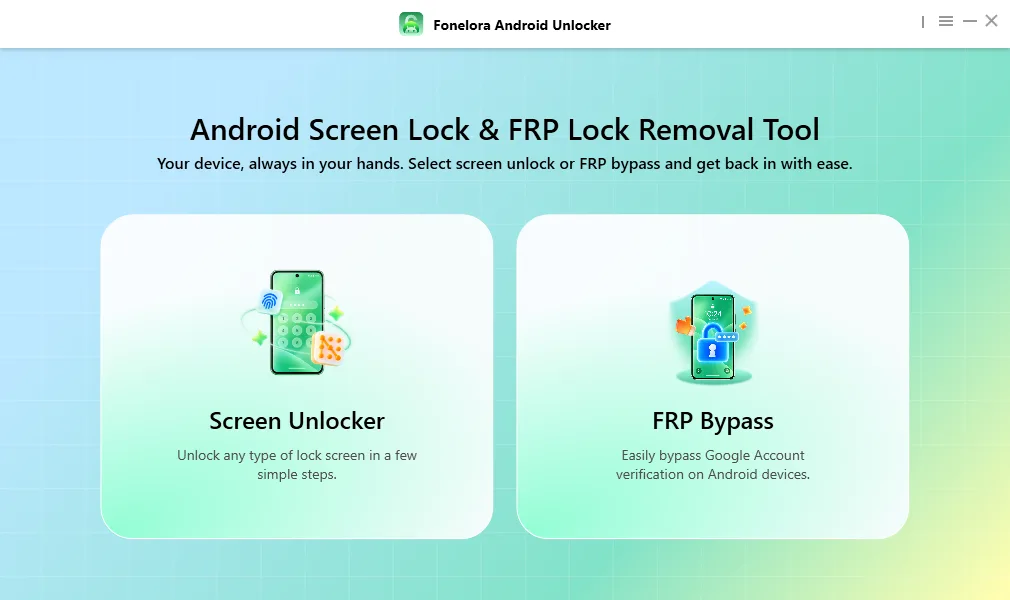
Download and install Fonelora Android Unlocker on your Windows PC or Mac. Open the software and select Screen Unlocker.
Step 2: Connect Your Locked Samsung Phone
Use a USB data cable to connect your Samsung phone to the computer. Select or confirm the device brand and follow the on-screen instructions.
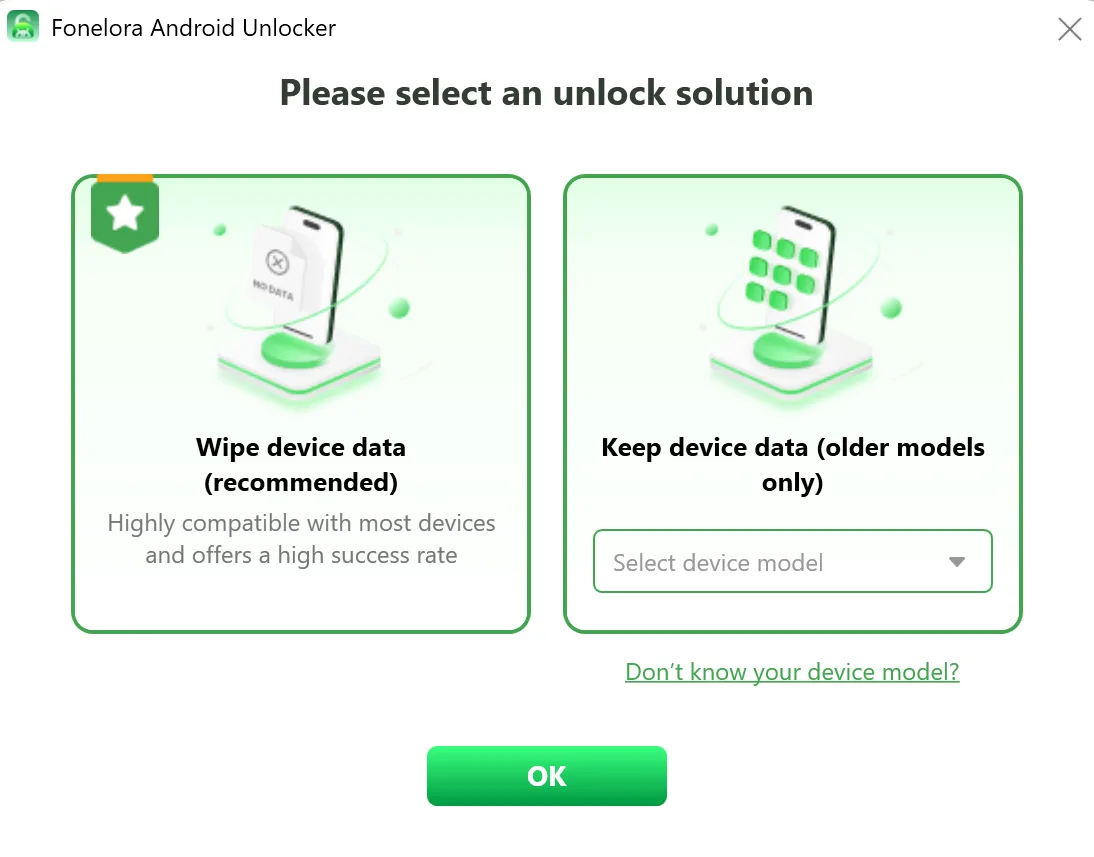
Before proceeding, check whether your specific model supports data-preserving unlocking or requires data erasure.
Step 3: Remove the Screen Lock
Follow the guided instructions to complete the unlocking process.
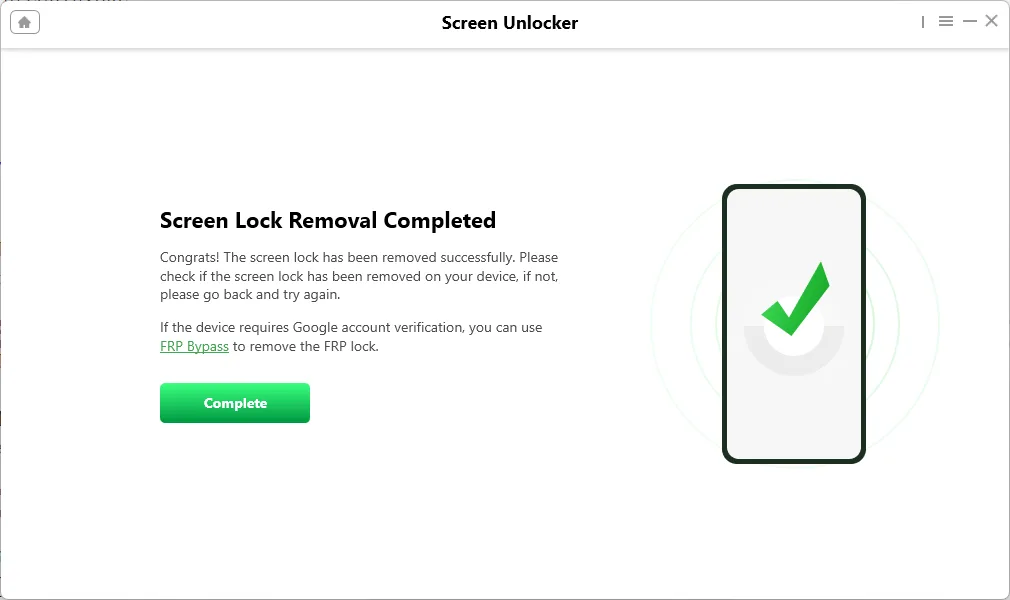
Once successful, you can regain access to your Samsung phone or complete any required device setup.
Why Try Fonelora Before Resetting Your Samsung?
If you simply want to wipe your phone and start fresh, a manual factory reset is sufficient.
But if you want to remove a forgotten screen lock without dealing with complicated button combinations, Fonelora Android Unlocker is worth considering first.
Its guided interface, support for multiple screen lock types, and data-preservation option for select Samsung models make it a practical alternative to manual resetting.
Before erasing your Samsung phone, check whether a simpler unlocking solution is available for your model.
Method 3: Factory Reset a Locked Samsung Phone Remotely
If your Samsung phone is connected to your Google account and meets the necessary requirements, you can also try resetting it remotely through Google Find Hub.
How to Reset Samsung with Google Find Hub
- Open Google Find Hub on another device.
- Sign in with the Google account associated with your locked Samsung phone.
- Select the Samsung device you want to reset.
- Open the device settings and choose the factory reset option.
- Confirm the remote erase request.
The phone must meet Google’s remote-reset requirements and connect to the internet for the command to execute.
Limitations: This method erases local data, requires access to the associated Google account, and may still trigger FRP verification after resetting.
If you only want to remove the screen lock rather than wipe everything, consider checking Fonelora Android Unlocker’s device compatibility first.
What to Do If Samsung Asks for Google Verification After Reset
After a factory reset, your Samsung phone may display:
“Verify your account”
This is Google’s Factory Reset Protection (FRP), a security feature designed to prevent unauthorized access after a device has been reset.
Here are three options.
Option 1: Sign In with Your Previous Google Account
Enter an eligible Google account previously linked to the Samsung phone. If you remember the account details, this is generally the easiest way to complete verification.
Option 2: Recover Your Google Account Password
If you forgot your password, visit Google Account Recovery and follow the official recovery instructions. After changing your password, you may need to wait before using the updated credentials during device setup.
Option 3: Use Fonelora Android Unlocker’s FRP Bypass Feature
If you’re the legitimate owner and official recovery options haven’t resolved the problem, check whether Fonelora Android Unlocker’s FRP Bypass function supports your Samsung device.
Launch the software, select FRP Bypass, connect your phone, and follow the guided instructions. For compatible devices, this feature provides an additional way to address Google verification and continue setup.
Conclusion: What’s the Best Way to Reset a Locked Samsung Phone?
If you need to factory reset a Samsung phone when locked, Recovery Mode is one of the most direct methods. It allows you to erase the device without entering the current screen password.
However, manual resetting has clear drawbacks: it permanently deletes local data, requires the correct hardware-button procedure, and may trigger Google FRP verification afterward.
If you only want to regain access to your phone, a full factory reset may not be necessary.
Fonelora Android Unlocker provides a convenient alternative for supported Samsung devices, offering guided screen lock removal, a no-data-loss option for select models, and a separate FRP Bypass function.
Before wiping your Samsung phone, check whether your model supports a more suitable unlocking solution.