


Type-C to HDMI Adapters for Creators: A Practical Field Setup Guide
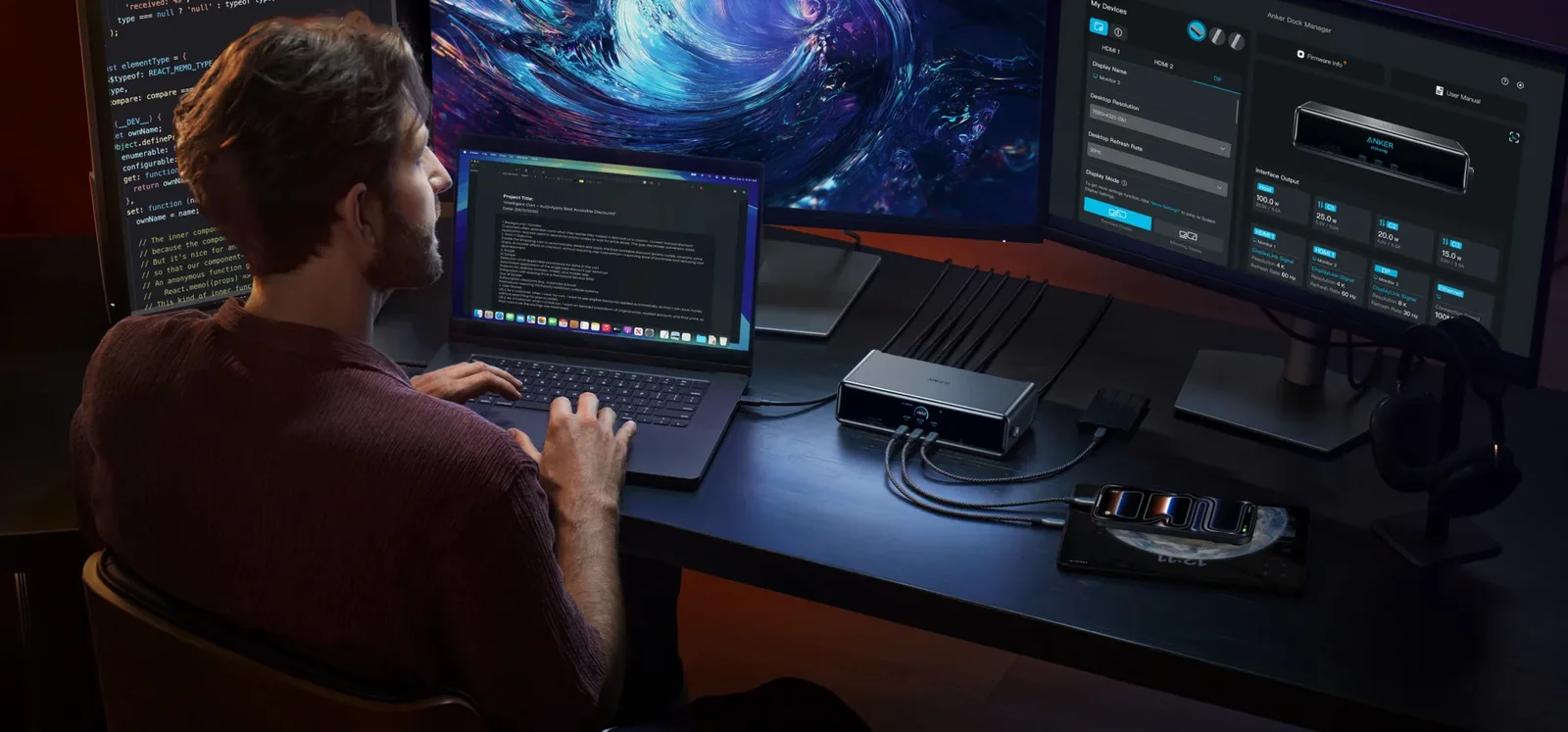
A creator working away from a studio may need to review footage on a hotel television, present a campaign from a laptop, monitor a mobile edit, or show a livestream dashboard on a larger screen. A type-c hdmi adapter can make that connection compact and quick, but only when the source device can output video and the adapter supports the required display mode. Treating it as part of a complete signal chain—not a magic plug—helps creators avoid black screens, soft previews, unstable connections, and last-minute incompatibility on location.
USB-C describes the connector’s shape, not everything the port can do. For a simple adapter to carry video, the laptop, tablet, or phone generally needs DisplayPort Alternate Mode, Thunderbolt, USB4, or another explicitly supported display-output path. Some USB-C ports handle charging and ordinary data only. No passive converter can extract video that the host does not provide.
Before a shoot or presentation, read the device manufacturer’s specifications for the exact model and port. Symbols beside a port can help, but documentation is more reliable. Mobile devices are especially inconsistent: some support screen mirroring or a desktop interface, while others cannot drive an external display despite using USB-C for charging.
Anker gives creators two practical paths: a dedicated USB-C to HDMI adapter for a simple display connection, or a broader hub when the same laptop must also handle storage, Ethernet, peripherals, or charging. The second option is more capable, but its functions share bandwidth and power, so model-level checking matters.
Understand the Entire Video Path
A working setup includes the source graphics hardware, USB-C port, adapter, HDMI cable, and destination display or capture device. The final resolution and refresh rate cannot exceed the lowest capability in that chain. A laptop may support 4K at 60Hz through one port, while an older adapter or cable limits the result to 30Hz. A television may require an enhanced HDMI setting before accepting a higher-bandwidth signal. When packing an Anker USB-C to HDMI adapter or hub, creators should verify the selected model’s display specifications alongside those of the host and destination screen.
“4K support” alone is incomplete. Creators should check resolution, refresh rate, color depth, chroma format, and high-dynamic-range requirements. A 4K 30Hz connection may be adequate for reviewing still frames but feels less responsive during editing. A 60Hz mode is generally more comfortable for timelines and cursor movement. Higher refresh rates can help certain gaming or live-production workflows, but only if every component supports them.
Color-Critical Work Needs Realistic Expectations
An external screen is useful for framing, client review, and workspace expansion, but it is not automatically color accurate. Televisions often apply sharpening, motion smoothing, dynamic contrast, overscan, or vivid color modes. Set the display to a PC, game, filmmaker, or neutral mode where appropriate, and disable unnecessary processing.
For grading or print decisions, use a calibrated monitor and a verified workflow. The operating system’s display profile, adapter path, and display settings all influence what appears on screen. An adapter that carries the intended signal faithfully cannot correct an uncalibrated panel. On location, it is often better to describe a screen as a convenient review display rather than a reference monitor.
Mirror, Extend, or Use a Dedicated Output
Mirroring shows the same image on the built-in and external displays. It works well for client previews, workshops, and simple presentations. Differences in aspect ratio may create black bars or cause the system to select a compromise resolution.
Extended mode adds workspace. A video editor can keep the timeline on the laptop and a full-screen preview on the monitor. A streamer can place chat, encoder status, or research on the secondary display. A presenter can keep speaker notes private while the audience sees slides. Arrange displays in system settings so pointer movement follows their physical layout.
Some creative applications provide a dedicated clean-feed or full-screen output, while some mobile apps treat an external display differently from the operating system. Test the exact application. Do not assume that because the desktop appears, protected streaming content or a camera app will behave the same way.
Display Output Is Not Video Capture
This distinction prevents expensive mistakes. An HDMI adapter connected to a laptop’s USB-C port normally sends video out to a display. It does not turn the laptop into an HDMI input for a camera or game console. Capturing an external HDMI source requires a capture device that converts incoming video into a USB data stream the computer can record.
Likewise, a camera’s HDMI output, a monitor’s HDMI input, and a capture card’s HDMI input have different roles even though the connectors may look identical. Map the direction of every signal before buying cables. If a workflow includes both output and capture, label the devices and test them together at the intended resolution and frame rate.
When a Simple Adapter Is Best
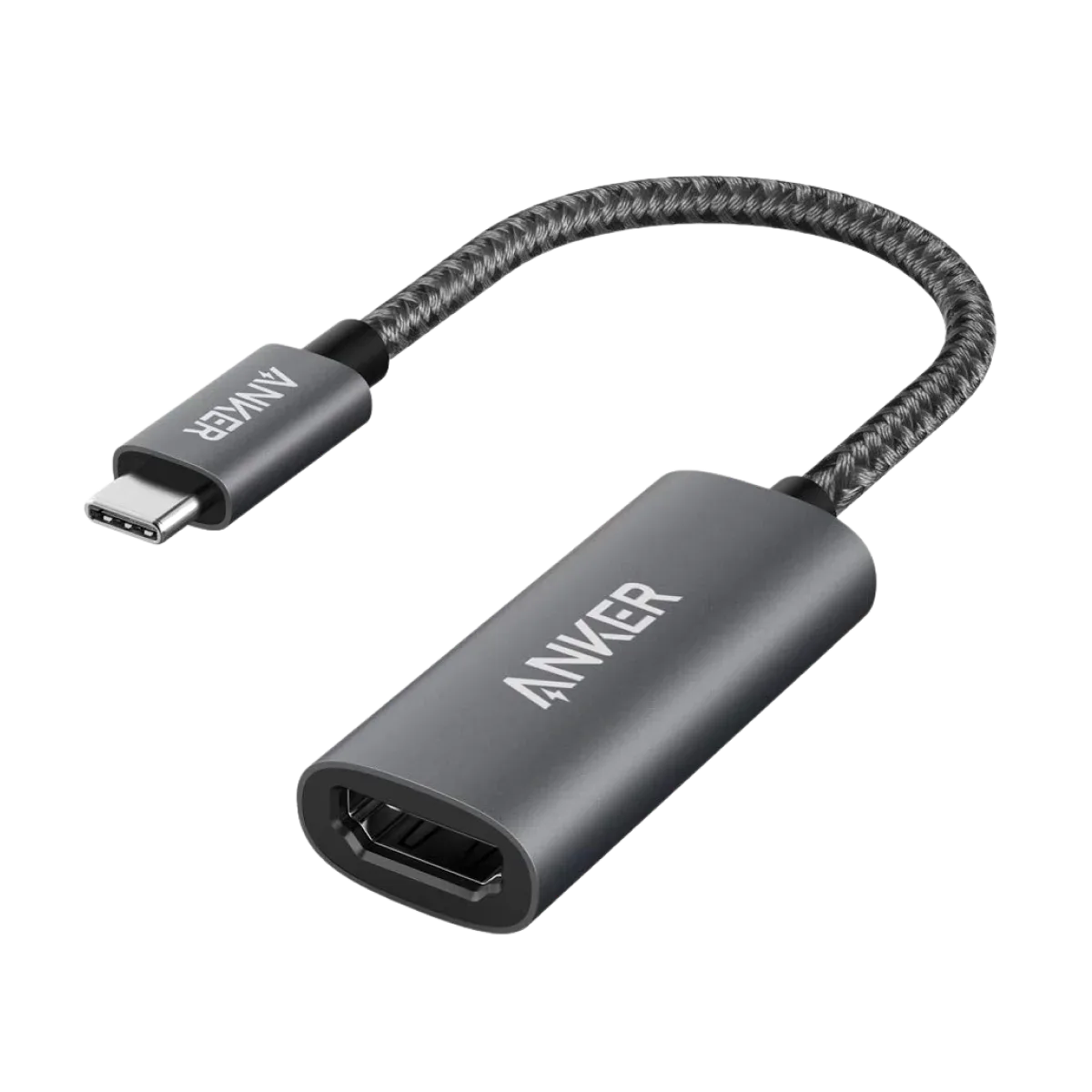
A compact adapter is ideal for creators who need one external display and want the smallest possible kit. It has fewer shared resources than a hub and is easy to isolate during troubleshooting. A short flexible lead can reduce leverage on the computer’s port when the HDMI cable is thick.
Choose the adapter for the required mode rather than the biggest claim. A photographer presenting stills may prioritize stable 4K output. A traveling trainer may value broad compatibility with projectors at 1080p. A video editor may require 4K 60Hz and dependable audio. The exact product specification should state the supported combinations.
For a photographer carrying a projector kit or a trainer moving between meeting rooms, Anker’s dedicated HDMI adapters keep the signal path short and the packing list light. A hub earns the extra space only when the field workflow also needs functions such as card access, USB data, networking, or pass-through charging.
When a Hub Makes More Sense
Creators often need to ingest an SD card, connect a drive, use Ethernet, power the laptop, and drive a screen at the same time. A well-matched hub can consolidate those connections. The convenience comes with constraints: the host link’s data bandwidth is shared, pass-through charging has a maximum, and simultaneous use may change performance.
Read how the hub allocates resources. A drive advertised at 10Gbps will not necessarily sustain that rate while other devices are active. Video output may use part of the available link. Power delivered to the laptop may be lower than the connected charger’s rating because the hub consumes some power itself.
For heavy editing, a full dock or separate high-speed connections may be more reliable than a travel hub. For a lightweight presentation kit, the hub can be ideal. The best setup is the simplest one that meets the assignment.
Build a Field Kit Around Known Components
A dependable kit should include the tested adapter, a certified HDMI cable suitable for the target mode, and any needed USB-C charging equipment. Add a short spare HDMI cable if failure would stop paid work. Keep the components in one labeled pouch so an assistant can find them without asking.
Cable length matters. Longer high-bandwidth HDMI runs are more demanding, especially in event venues. If the screen is far from the computer, use an appropriate active or optical HDMI solution rather than chaining unverified extensions. Secure cables so people cannot pull the adapter or laptop to the floor.
Creators should also carry a way to present at a lower common resolution. A demanding 4K workflow may fail on an older projector, while 1080p works immediately. Flexibility is more valuable on location than insisting on the maximum mode.
Power Planning for Mobile Work
Video output, high screen brightness, editing, hotspot use, and livestream encoding can drain a laptop or phone quickly. A simple HDMI adapter usually does not provide charging. If the host has only one USB-C port, a hub with compatible Power Delivery input may be necessary, or the session must be planned around battery runtime.
Verify the power path before leaving. The wall charger must supply enough power, the cable must be rated for it, the hub must accept it, and the host must support charging through the connected port. A low-power phone adapter may keep a laptop awake without increasing its battery level under load.
Keep power and video troubleshooting separate. If a hub behaves unpredictably, connect power first if its instructions require it, then attach the host and display. Record a known working order for the team. Field reliability often comes from repeatable procedure, not expensive equipment alone.
Audio Through HDMI
HDMI normally carries audio with video. After connection, the computer may switch sound automatically to the display, or the creator may need to select it manually. Some monitors accept audio but have no speakers; others provide a headphone jack. Confirm the sound route in the operating system and the creative application.
For a public presentation, test volume, embedded video, and notifications. For livestream production, avoid accidental monitoring loops by understanding which device is the input and which is the output. If audio is handled by a separate interface, the HDMI display may need to be disabled as the system sound device.
Troubleshooting Under Time Pressure
If the screen is black, confirm that the USB-C port supports video and the display is on the correct input. Reconnect both ends, then restart the source with the display attached. Try a lower resolution or refresh rate. Replace the HDMI cable with a known-good one and remove unneeded splitters, hubs, or extenders.
If the image flickers, check cable strain, heat, connector fit, and bandwidth. A stable lower mode points toward a cable or capability limit. If video works but protected streaming content does not, digital copy protection may be failing somewhere in the chain. Test ordinary local footage to separate application restrictions from basic connectivity.
Update graphics drivers and the operating system through official sources before the job, not minutes before going live. Managed corporate devices may restrict drivers or external displays. A rehearsal with the exact laptop, adapter, cable, application, and venue screen is the strongest preventive step.
Protecting the Equipment
Repeated setup can wear ports and cables. Do not let a heavy HDMI lead hang from the laptop. Support the adapter on the table and add strain relief where possible. Inspect connectors for bending and replace cables that disconnect when moved.
Keep the adapter dry and allow heat to escape. Store it separately from loose metal items and cap delicate connectors if the kit travels in a crowded bag. Record the exact model so a lost unit can be replaced with the same tested specification rather than an uncertain substitute.
A Workflow That Travels Well
A Type-C to HDMI connection is most reliable when a creator defines the requirement precisely: which source device, which application, which display mode, which cable length, and whether charging or extra ports are needed. That information determines whether to carry a compact adapter, a multiport hub, or a full dock.
The product page is a starting point, not proof that a model suits every workflow. Verify the specification, test the entire chain, and pack known-good backups for critical work. With that discipline, a small adapter can support client review, editing, teaching, presentations, and live production without becoming the weakest link in the field kit.