


Alright, let’s be real, WhatsApp is life. Group chats with the squad, video calls with your fam, late-night memes, and that one friend who sends 89 voice notes instead of texting.
We live on it. But typing long convos on your phone when your laptop is RIGHT there? Nah. Time to upgrade your experience and take things to the big screen.
This is your no-nonsense, totally Gen-Z-approved guide to downloading WhatsApp on your PC or Mac. Bonus? I’ll even throw in some things I’ve personally messed up so you don’t have to.
How to Download WhatsApp for Windows 10 or 11?

I remember during the WFH season, juggling Zoom calls and typing on WhatsApp from my phone felt like cardio for my fingers. That’s when I discovered WhatsApp Desktop.
It’s super easy to download for Windows 10 or 11. Head to the official WhatsApp Download Page and grab the .exe file for Windows. Double-click it, and boom, you’re halfway there.
Once it installs, you’ll get a QR code. Open WhatsApp on your phone > Tap the Settings > Linked Devices > Scan the code. And just like that, your phone and PC are vibing.
Pro Tip: Want your desktop vibes to match your aesthetic captions? Use this AI Instagram Caption Generator to match your status game to your desktop flex.
How to Install WhatsApp on Mac OS? (Step-by-Step Guide)

For all my MacBook besties, the process is just as easy. Go to the WhatsApp Download Page and download the .dmg file. Open it, drag WhatsApp into Applications, and launch it.
When the QR code pops up, scan it using your WhatsApp mobile app just like you do on Windows.
Here’s where I messed up: I didn’t enable “Open at Login,” so I kept forgetting it existed. Rookie move.
Pro Tip: If your Mac desktop is full of vibe boards and vision boards, throw in some matching bios using this attitude bio for WhatsApp to keep your whole look coordinated.
Things to Consider While Installing WhatsApp on PC
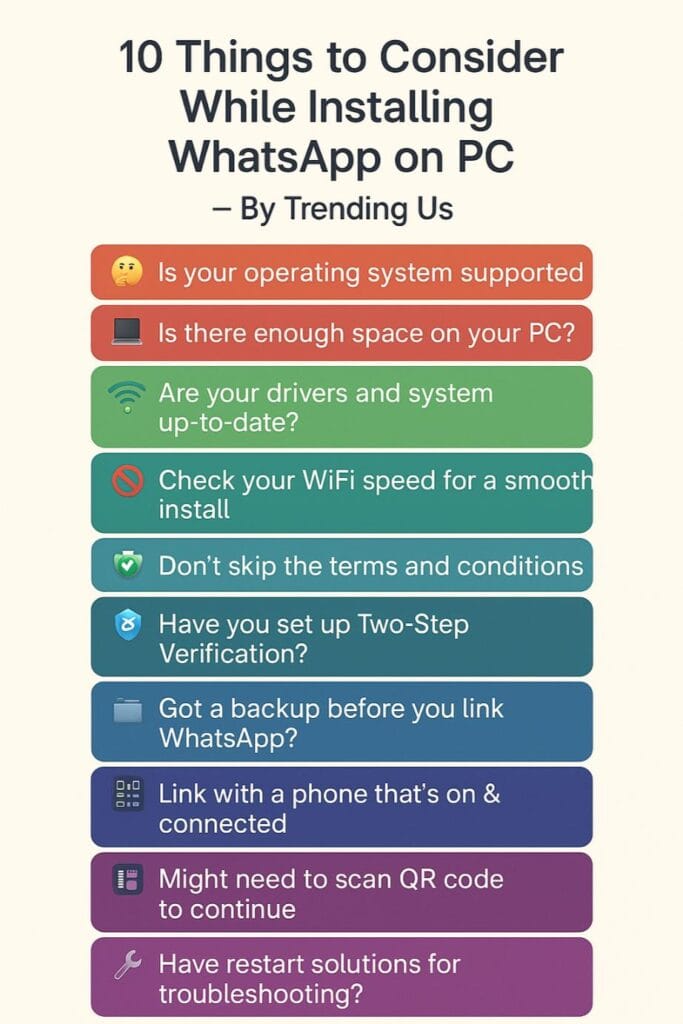
Before you dive in, there are a few things to keep in mind (learned some of these the hard way):
- You need to have WhatsApp installed on your phone to sync.
- Your phone should stay connected to the internet while using the desktop.
- Make sure your PC meets the minimum OS requirements.
- Don’t download it from shady websites. Just go to the official one, pls.
- Don’t forget to update your WhatsApp Desktop occasionally for new features.
- And yep, you can’t make voice/video calls on all PCs (depends on webcam/mic).
Pro Tip: Use this Facebook Hashtags Generator if you’re posting your desktop setup and want to get more engagement. Your setup deserves that spotlight.
Why People Should Use WhatsApp on PC?
Using WhatsApp on PC is a whole lifestyle shift. It’s easier to multitask, copy-paste stuff from work, type faster (especially during meme wars), and your neck won’t hurt from staring down at your phone all day. Plus, transferring files? So. Much. Smoother.
Also, if you’re someone like me who replies to 100 messages while simultaneously stalking Pinterest, this setup is for you. Once you start, there’s no going back.
Pro Tip: While you’re living your best digital life, spice up your WhatsApp feed using these short WhatsApp quotes that totally match your mood.
Conclusion
Let’s wrap it up. WhatsApp for PC = cleaner aesthetic, better productivity, and hands-free glow-up. Whether you’re on a Windows laptop or a shiny new MacBook, it takes just a few clicks to change your whole messaging experience.
And hey, if you’ve been stuck replying with typos or sending voice notes with background chaos, now’s your time to glow up. So scan that code, stretch those fingers, and start typing like the digital diva you are.
Pro Tip: Get into your caption bag using these WhatsApp status quotes to make sure your vibe matches your upgraded chat game.
FAQs
Is WhatsApp desktop app free to use?
Yes, it’s totally free, zero subscription, just vibes.
What is the difference between WhatsApp Web and WhatsApp Desktop?
Web runs in your browser, Desktop is an app, it’s smoother, faster, and has more features.
Is WhatsApp available for Windows 11?
Yep, it works perfectly on Windows 11. I’m using it right now.
Is WhatsApp for PC safe?
If downloaded from the official site, it’s 100% secure. Just don’t scan sketchy QR codes.
How to download WhatsApp on PC without Microsoft Store?
Use the .exe file directly from the official WhatsApp site. Easy.
Why can’t I install WhatsApp on my laptop?
Check your OS version and permissions. Also, delete any corrupted download files and try again.